Need help getting to grips with the Repository? No problem – we’ve got you!
About Filtering, Searching, and Sorting
One of the amazing things about the new Repository is that we can filter, search, and sort the data to more easily find what we’re looking for.
Entries in the Repository are called records. Records are grouped into tables. Each table stores different bits of data about the records in it, which are called fields.
Filtering the data means excluding some records that don’t meet our needs. For example, we might exclude patterns that aren’t knitting.
Searching the data means looking for something specific. For example, a pattern with the word “rose” in it. Note: searching means checking all fields, so “rose” could appear in the pattern name, designer name, Instagram handle, etc.
Sorting means to organise the data in an order. For example, organising patterns alphabetically by pattern name.
Accessing Filtering, Searching, & Sorting on Mobile
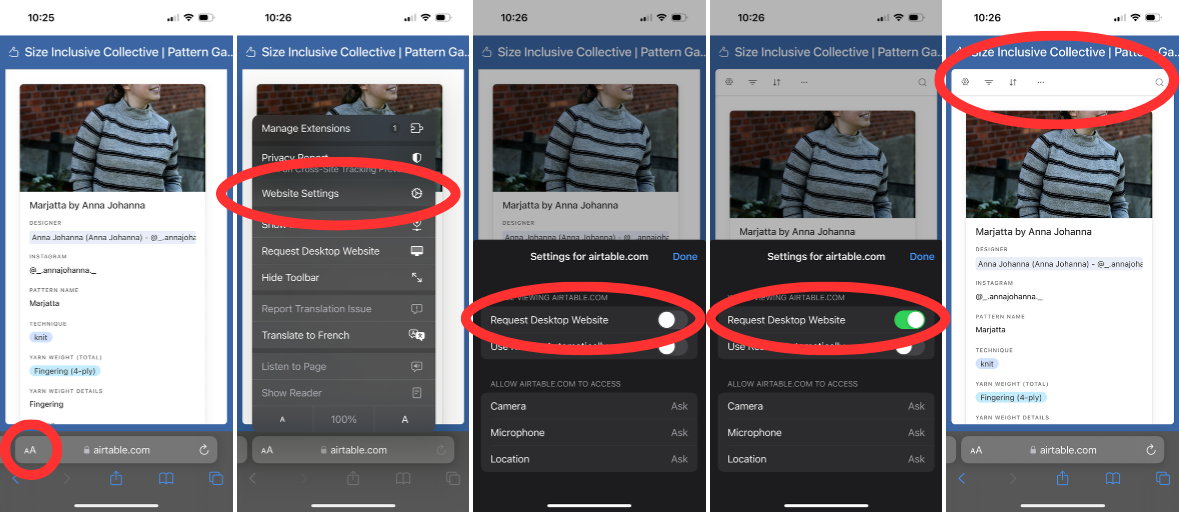
The mobile version of the Repository does not show the filter, search, and sort functionality at the top of the screen. However, you can request the desktop version of the site and access them that way.
On iOS (Safari):
- Tap on the AA symbol at the bottom left of the screen.
- On the menu that appears, tap on Website Settings.
- Find the “Request Desktop Website” option and toggle it on.
Click on the image below to enlarge.
On Android (Chrome, Firefox, Opera):
- Tap on the 3 vertical dots at the top right to open the menu.
- Find the checkbox labelled “Desktop site” and check it.
Filtering Records
All tables can be filtered. The way you set up a filter is the same on each table, but the options for what criteria to filter on vary, as each table stores information in a different format.
Here are the steps you would follow to filter records on the designer table to show only designers who have screen reader friendly patterns.
- On the Airtable toolbar, click on Filter.
- On the filter tab that appears, click on Add condition.
- The default filter that appears says “Where ID contains” and has a blank text box for you to enter a value. We want to filter by Accessibility Features, so we would change the dropdown from ID to Accessibility Features.
- You can filter by any field you like!
- Accessibility Features is a “multi select” field, which means that the data is limited to certain options, but each designer can have as many of those options as they like. This means that the “contains” part of our filter changes to a dropdown list of options, defaulting to “has any of”. That works fine for our example.
- Changing this dropdown will change exactly how the filter chooses whether to include a designer or not. For example, if you choose “has any of” and then give more than one option, designers who have one option but not the other(s) will be included. However if you choose “has all of” and then give ore than one option, only designers who have all of those options will be included.
- The text box at the end has also changed to a dropdown, and says “Select an option”. Use it to toggle on “Screen Reader Friendly”.
- The designers below are immediately filtered, leaving just two results.
Filters can be made more specific by adding more conditions. Use the “Add condition” button at the bottom of the filter tab.
To remove a filter, click on the trash can icon to the right of its criteria. This will display all records.
Searching Records
Here are the steps you would follow to search records on the pattern table to highlight patterns that have “rose” in them.
Reminder: searches are performed over all fields in the table, so you’ll get results where “rose” is in the pattern name, but also where it’s in the designer name, Instagram handle, or anywhere else!
- On the Airtable toolbar, click on the magnifying glass at the top right.
- A search bar appears, with the help text “Find in view”. Click on the help text and type in “rose”.
- You can search for anything you want!
- The search bar shows you how many results there are, and displays up and down arrows to help you navigate through them. The records themselves are highlighted.
- Records that don’t match are still shown. If you want to hide these, use a Filter instead.
To remove a search, click on the X icon to the right of the search bar. This will remove the search term, navigation arrows, and highlighted records.
To remove a search, click on the X icon to the right of the search bar. This will remove the search term, navigation arrows, and highlighted records.
Sorting Records
Here are the steps you would follow to sort records on the pattern table to show Made to Measure patterns first.
- On the Airtable toolbar, click on Sort.
- On the sort tab that appears, choose “Made to Measure?”.
- You can sort by anything you want!
- The sort tab will give you dropdown options for which order your results should be in. Choose ticked -> unticked.
To remove a sort, click on the X icon to the right of the sort tab. Note that the records will not re-order themselves automatically.
Got a question about how to use the repository? Ask us on Instagram!
 ByAutumn